

Manage a survey’s lifecycle
Understand drafts and live surveys, make an editable copy, and archive or restore a survey from the list.
Use the Surveys list to find your work and keep old surveys out of the active view. A survey’s publication state and its archived state are different.
Find a survey
Section titled “Find a survey”Open Surveys in the sidebar. Use Search surveys to find a title, or select Live, Closed, or Drafts to narrow the list.
| State | Meaning |
|---|---|
| Draft | The survey is still being prepared |
| Live | The survey has been published |
| Closed | The survey has stopped accepting responses |
| Archived | The survey has been moved out of the active list |
A live survey may still have access restrictions or a response quota. “Live” does not guarantee that every link can accept a response indefinitely.
Edit a draft
Section titled “Edit a draft”Open the draft from the list. Use the builder steps to update its setup or questions. Watch the save status and resolve any error before leaving the page.
Change a published question set
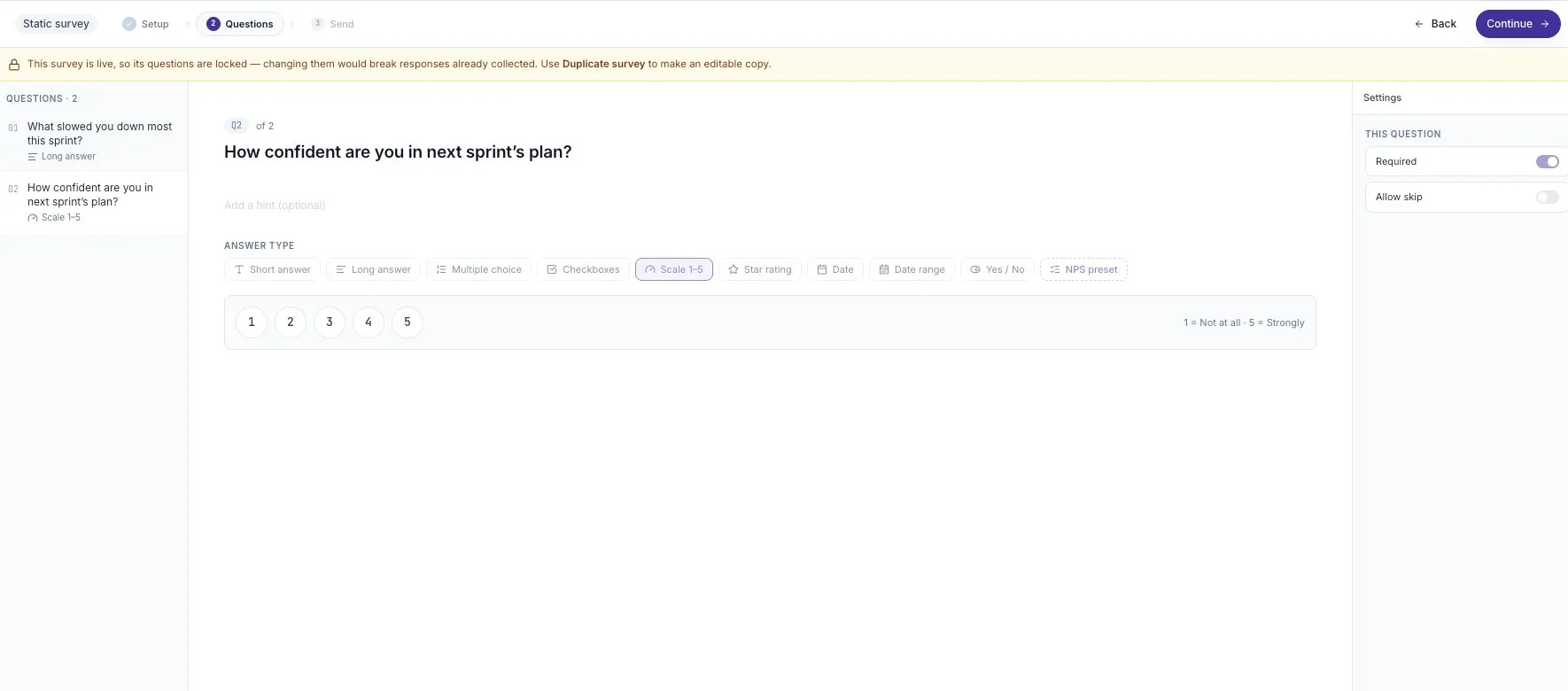
Section titled “Change a published question set”Published questions are locked to keep the collected answers consistent.
- Open the survey from Surveys. A published survey opens its results page.
- Open its builder. The current results header does not link to the duplicate action, so add
/buildto the end of the survey’s address. The path should end in/surveys/<survey-id>/build; keep your existing survey ID. - In the builder header, open Survey actions and select Duplicate survey.
- Give the copy a clear name.
- Review its setup and questions, then publish it when ready.
This address-bar step is a workaround for the current navigation. Opening the builder does not unlock the original published questions. If the builder is unavailable to your role, ask the organizer or contact support.
Check the time estimate and collection settings on the copy. Do not assume every setting has carried over. Share the new survey’s link when you want people to answer the revised questions.
Archive an old survey
Section titled “Archive an old survey”- Return to the Surveys list.
- Open Survey actions at the end of the survey’s row.
- Select Archive.
- Check for the Survey archived confirmation.
The survey moves out of the active list. Use this to keep completed or unused work from crowding the list.
Restore an archived survey
Section titled “Restore an archived survey”- Select Archived at the top of the Surveys list.
- Find the survey.
- Open its row’s Survey actions menu.
- Select Restore.
- Return to Active surveys and check that it appears.
Archiving is different from deleting. Use Archive when your goal is to clear the list while keeping a recovery path.
Before removing anything
Section titled “Before removing anything”Check the title and whether it contains responses you need. Do not use a destructive action as a shortcut for ending collection or cleaning up the list.
If you need to keep a record of feedback, review Responses and transcripts before removing the survey from your normal workflow.