

Create custom signals
Write your own signal detection rules — by describing them to the AI or by filling in the rule form — and tune the confidence threshold that governs them.
The fifteen built-in rules cover patterns common to most engineering organizations. A custom rule covers the ones specific to yours — a migration everyone is dreading, a process you’re piloting, a phrase your teams use that means something.
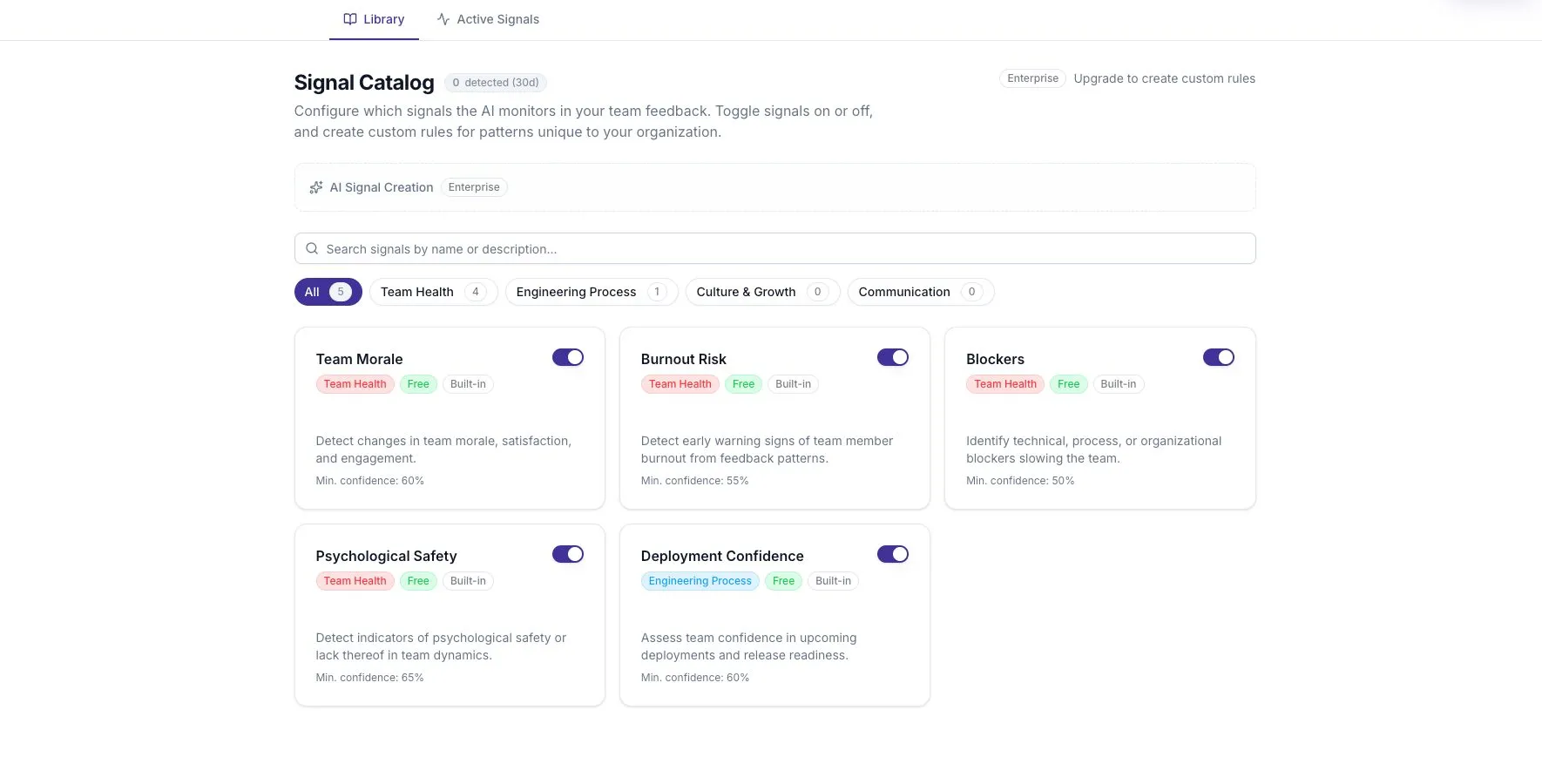
Custom rules sit alongside built-in ones in the catalog, run in the same detect-then-critique pipeline, and produce ordinary Signal Events.
Describe it and let the AI write it
Section titled “Describe it and let the AI write it”The fastest route. At the top of /signals there is an input labelled Describe what you want to detect.
- Type what you want caught, in plain language — for example,
Detect when team members mention feeling overworked or burned out. At least five characters. - Press Generate Rule (or Enter).
- The AI returns a complete rule — name, description, detection prompt, and threshold — and creates it.
- The new rule appears in the Custom Rules section of the catalog, enabled, and an evaluation is dispatched immediately.
- Open the rule from the catalog to review what the AI wrote, and edit anything that isn’t right.
If the description is too vague to work with, you’ll be told to rephrase rather than handed an invented rule.
Review the generated detection prompt before relying on it. The prompt is the whole rule — it is what the model reads on every evaluation — and a generated one is a first draft.
Write it yourself
Section titled “Write it yourself”Use Create Custom Rule at the top right of the catalog when you already know what you want the detector to look for.
- Select Create Custom Rule.
- Name — up to 100 characters. Name the pattern, not the reaction to it:
Migration Anxiety, notUrgent. - Description — up to 500 characters. What this rule detects and why it matters. This is also what the triage pass reads when deciding whether the rule is worth evaluating against a batch of feedback, so make it descriptive rather than terse.
- Detection prompt — between 10 and 5,000 characters. The instructions the model follows. This is the part that does the work; see below.
- Confidence threshold — between 0.1 and 1.0, default 0.6, adjustable in steps of 0.05. The panel recommends 0.5–0.7.
- Select Create Rule.
The rule is evaluated against your existing feedback straight away, so if the pattern is already present you’ll see events without waiting for the hourly pass.
Writing a detection prompt that works
Section titled “Writing a detection prompt that works”The built-in rules are the best available model for this, and they share a shape:
- Name the vocabulary. List the actual words and phrases people use — quoted fragments, not paraphrases. The built-in tech-debt rule names
"tech debt","hacky","workaround","legacy code","quick fix". - Describe the behaviour as well as the words. People often signal a problem without naming it. Built-in rules pair explicit phrases with implicit indicators — the deployment-anxiety rule looks for overly cautious release cadences as well as people saying they’re afraid to deploy.
- Say what to weight. Several built-in prompts instruct the model to weight recurring mentions from multiple people above isolated complaints, or issues affecting many engineers daily above one-off friction.
- Stay within one pattern. A prompt covering three unrelated things will fire on all of them and produce a signal whose title tells you nothing. Write three rules.
Choosing a threshold
Section titled “Choosing a threshold”The threshold is the verified confidence a detection must reach after critique before it becomes a Signal Event. It is a directness dial, not a quality dial.
| Threshold | Effect |
|---|---|
| 0.5 | Catches indirect and implied mentions. More events, more noise. |
| 0.6 (default) | The middle of the built-in range. |
| 0.7+ | Only strongly evidenced patterns. Fewer, firmer events. |
For reference, the built-in rules run between 0.5 and 0.65. Ones that key on unambiguous vocabulary — Tooling Frustration, Documentation Gaps, Blockers — sit at 0.5; the one asking for the most inference, Psychological Safety, sits at 0.65.
Start at the default and move it after you’ve seen real events. Guessing a threshold before you know what the rule catches gets you a rule you don’t trust in either direction.
Remember that the threshold also shapes severity: a rule at 0.5 can produce Medium and Low events, whereas one at 0.7 produces nothing below High.
Edit, disable, archive
Section titled “Edit, disable, archive”Select a rule’s name in the catalog to open it.
- Custom rules open for editing. Every field can change, including the threshold. Built-in rules open read-only.
- The toggle on each card enables or disables the rule for the whole workspace. Disabling stops future evaluation; existing events stay until they age out.
- Archive removes a custom rule from the catalog.
Disable when you want to stop the noise but keep the definition. Archive when the rule was wrong.
Related
Section titled “Related”- Signal catalog — the built-in rules and their thresholds
- Signals overview — triage, detection, and critique
- Roles and permissions — who may manage signal rules
- Plans and tiers — what each plan includes