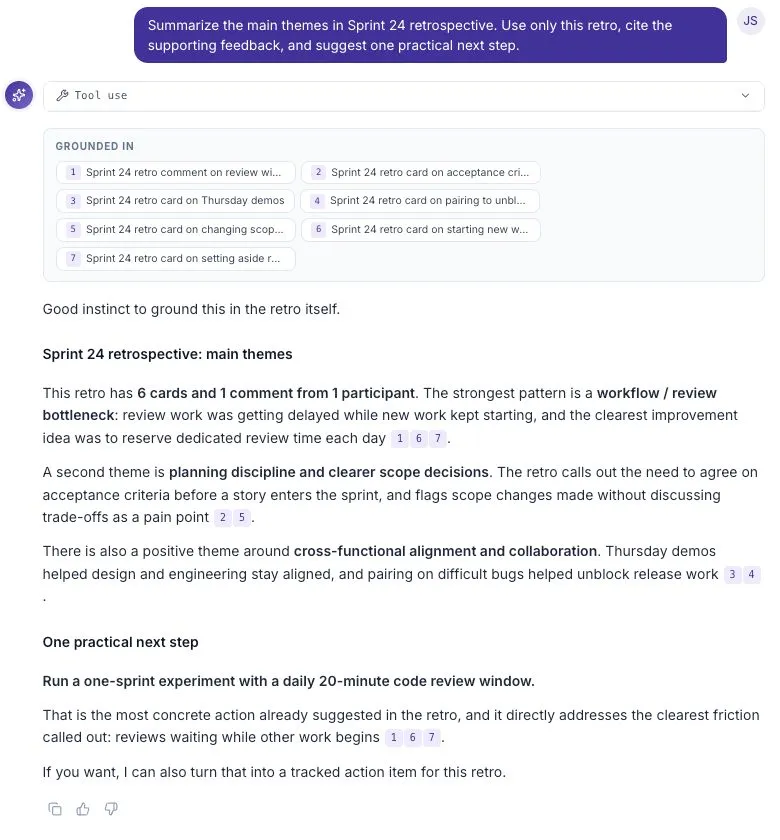
Threads and pinning
Start, resume, rename, pin, search, and delete Ask Threads from the Threads panel beside the Ask chat column.
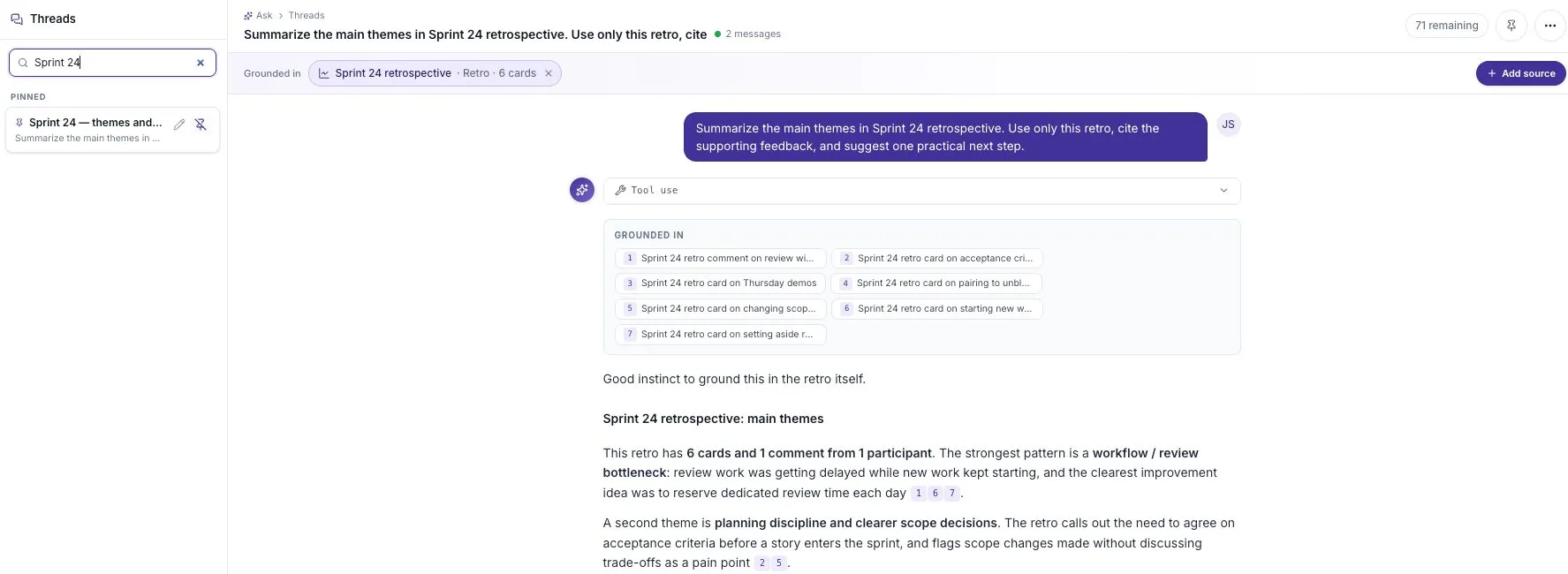
Every question you ask lives in an Ask Thread — a saved conversation containing your questions and the answers. The Threads panel down the left of the Ask page is where you manage them.
Start a thread
Section titled “Start a thread”- Open Ask.
- Choose the feedback sources you want to include.
- Type your question in the composer and select Send. You can also use one of the suggested prompts on the empty state.
The thread is created on that first question, and it appears in the Threads panel as soon as the answer starts streaming. Its name comes from your first question until you rename it.
To start a fresh one at any point, click New thread at the bottom of the panel. This clears the current thread’s grounding and any staged images — it does not delete the thread you were in.
Resume a thread
Section titled “Resume a thread”Click any row in the Threads panel. Its saved conversation and selected sources load. Check the source bar before sending a new question.
Rows are grouped into three sections:
| Section | Contains |
|---|---|
| Pinned | Every pinned thread, regardless of age |
| Today | Unpinned threads updated in the last 24 hours |
| Earlier | Everything else |
Each row shows the thread name and when it was last updated.
Rename a thread
Section titled “Rename a thread”- Hover the row (or tab to it) and click the pencil.
- Type the new name — up to 120 characters.
- Press Enter, or click the check. Escape cancels.
Clicking away from the field also commits the rename. A blank name is ignored.
Renaming replaces the auto-generated name derived from your first question. Once a thread has a real name, the row shows the original first-question snippet as a second line.
Pin a thread
Section titled “Pin a thread”Click the pin on the row, or the pin button in the thread header. Pinned threads move to the Pinned section and stay there no matter how old they get. Use a clear name such as “Sprint 24 — review delays” so you can recognize it later.
Click it again to unpin.
Find a thread
Section titled “Find a thread”Type into Search threads at the top of the panel. Filtering is by thread name and applies to the threads already loaded — the panel loads up to 50.
If nothing matches you get “No threads match” rather than an empty panel.
Delete a thread
Section titled “Delete a thread”- Open the thread.
- Click the overflow button in the thread header.
- Choose Delete thread.
The thread is archived and disappears from the panel, and Ask drops you into a fresh empty thread. There is no undo in the UI.
Rate an answer
Section titled “Rate an answer”Below each answer are a copy button and thumbs up / thumbs down. Copy puts the answer’s text on your clipboard. Check the pasted result; charts and other answer elements may not transfer with the text.
Clicking the same thumb again clears the rating.