

Connect a custom domain
Serve surveys from your own subdomain over HTTPS by adding DNS records in Settings → Branding and waiting for validation and SSL.
A custom domain lets participants open surveys at an address you control, such as surveys.acme.com, using a secure HTTPS connection.
Custom domains require Pro, Business, or Enterprise and access to Branding settings.
Before you start
Section titled “Before you start”You need a subdomain, not an apex domain. surveys.acme.com or feedback.acme.com work; acme.com does not work with this setup.
You also need access to your DNS provider to add records.
1. Add the domain
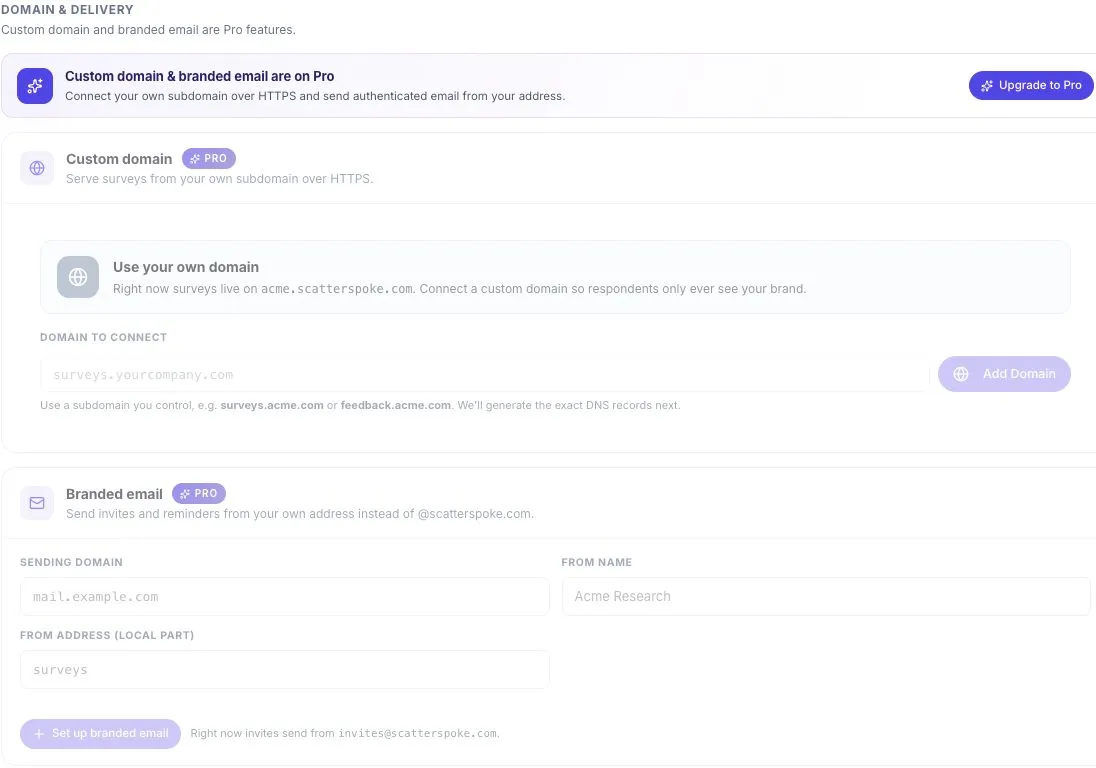
Section titled “1. Add the domain”Go to Settings → Branding → Custom domain, type the subdomain, and select Add Domain.
ScatterSpoke generates the exact DNS records you need and moves the card to Pending DNS.
2. Add the DNS records
Section titled “2. Add the DNS records”The records table lists each record’s type, host, and value, each with a copy button. There are usually two kinds:
- A CNAME pointing your subdomain at the ScatterSpoke edge target.
- One or more ownership records proving you control the domain.
If you use Cloudflare, set these records to DNS only, not proxied. A proxied record breaks ownership validation.
3. Wait for validation and SSL
Section titled “3. Wait for validation and SSL”ScatterSpoke checks automatically about once a minute, and Check now forces a check. The card walks through these states:
| State | Badge | What is happening |
|---|---|---|
| Pending DNS | Pending DNS | Waiting for your records to appear |
| Verifying domain ownership | — | Records found; ownership being confirmed |
| Issuing SSL certificate | Almost there | DNS resolved; certificate being issued |
| Live | Live | Connected and secured |
| Domain setup failed | Action needed | Validation or certificate issuance failed |
DNS changes can take up to 48 hours to propagate, though under an hour is typical.
4. Confirm it is live
Section titled “4. Confirm it is live”The live state reports four things: the SSL certificate (Active · auto-renews), the date the domain was verified, the DNS target it resolves to, and a health check.
Copy a fresh link from a survey’s sharing controls and open it in a separate browser window. Confirm that the address uses your domain and that the correct survey loads over HTTPS. Update links you shared earlier where needed.
If setup fails
Section titled “If setup fails”The failed state lists the usual causes:
- A record’s host or value does not match exactly.
- Cloudflare records are proxied instead of DNS only.
- DNS has not propagated yet.
Fix the records and select Check now to retry. There is no separate retry button.
Remove a domain
Section titled “Remove a domain”Remove Domain asks for confirmation, then deletes the domain and revokes its SSL certificate. Links on that domain stop resolving immediately, so make sure nothing in flight — an open distribution, a printed QR code — still points at it.