Group and vote in a retro
The short version of the Group and Vote phases — make and check groups, use Group with AI, set a vote budget, cast and take back votes, and move to Review.
Between collecting feedback and discussing it, a guided retro has two short phases: Group pulls related cards together, and Vote decides what the team talks about first. This page covers both in one pass; the detailed references are Group related feedback, The Vote phase, and Timer and votes.
Group sits between Feedback and Vote
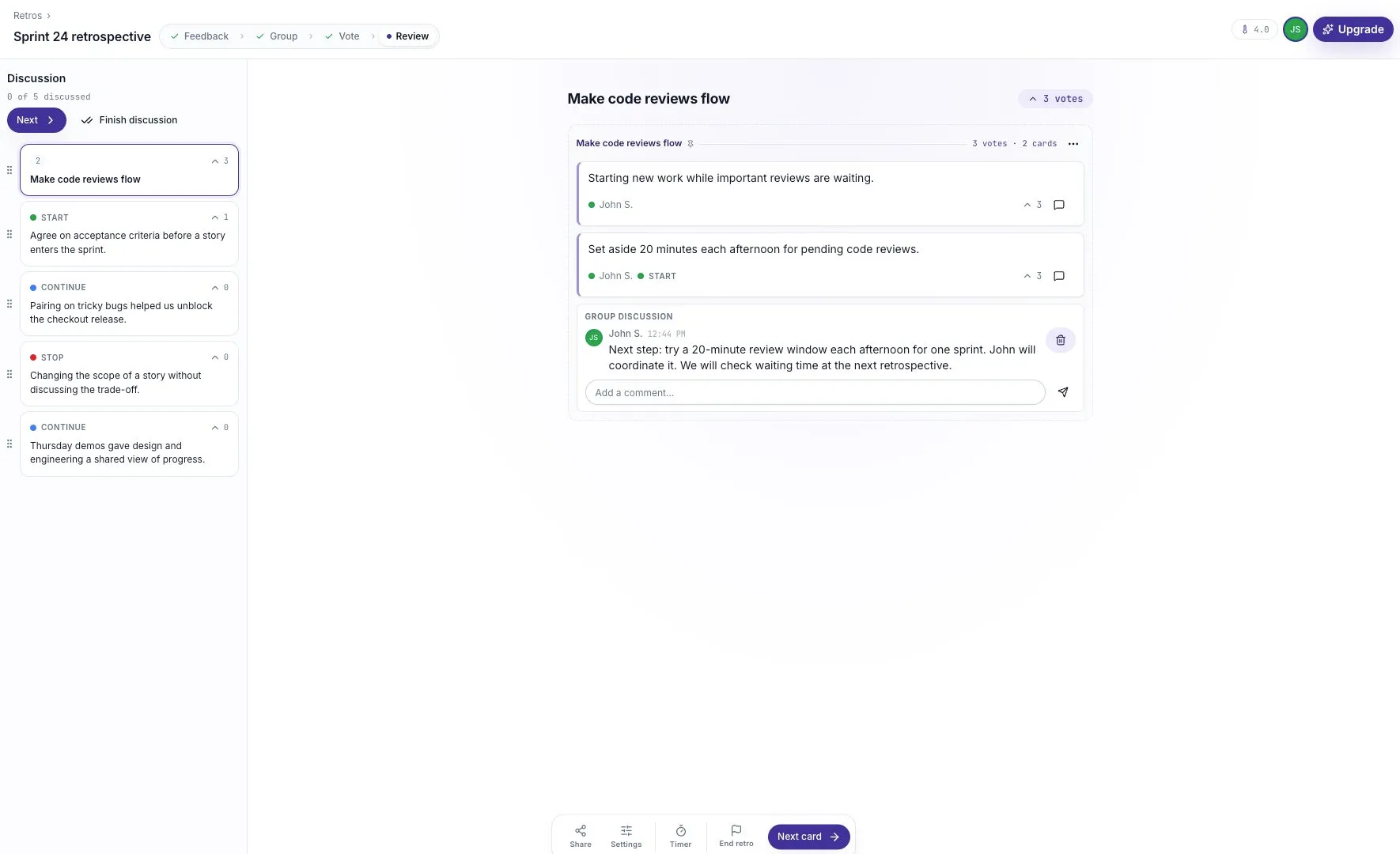
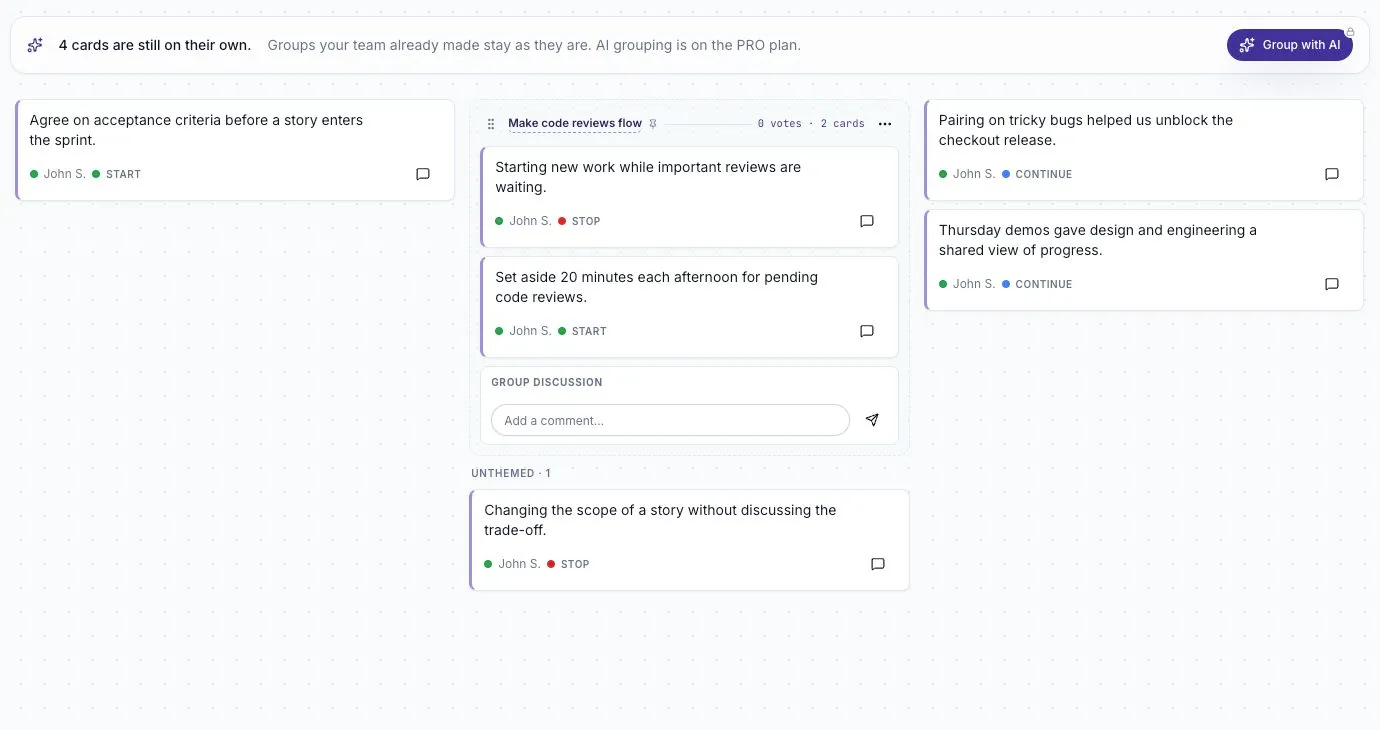
Section titled “Group sits between Feedback and Vote”The phases run Feedback → Group → Vote → Review. Use Group to bring related cards together before people choose what to discuss. “Reviews take too long” and “Set aside time for reviews” are a problem and a possible response — a group called Make code reviews flow keeps both halves of that conversation together, and lets the team vote on it as one topic.
When the writing time in Feedback is up, select Next: Group in the dock and confirm Move to Group. That closes writing, reveals every card, and opens grouping. Give everyone a moment to read before anything gets rearranged.
Make a group
Section titled “Make a group”Find two cards about the same topic and drag one onto the other using its drag handle. The handle is hidden until you hover a card — it appears at the top right, beside the card menu.
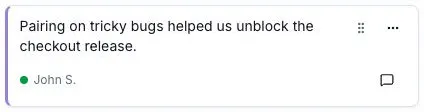
The AI gives the new group a title straight away; if it doesn’t fit, select the title, type your own, and press Enter. The original cards stay readable inside the group, with their column labels intact. A good group can connect a problem with a suggested improvement — but read for meaning, not matching words.
Check the grouping
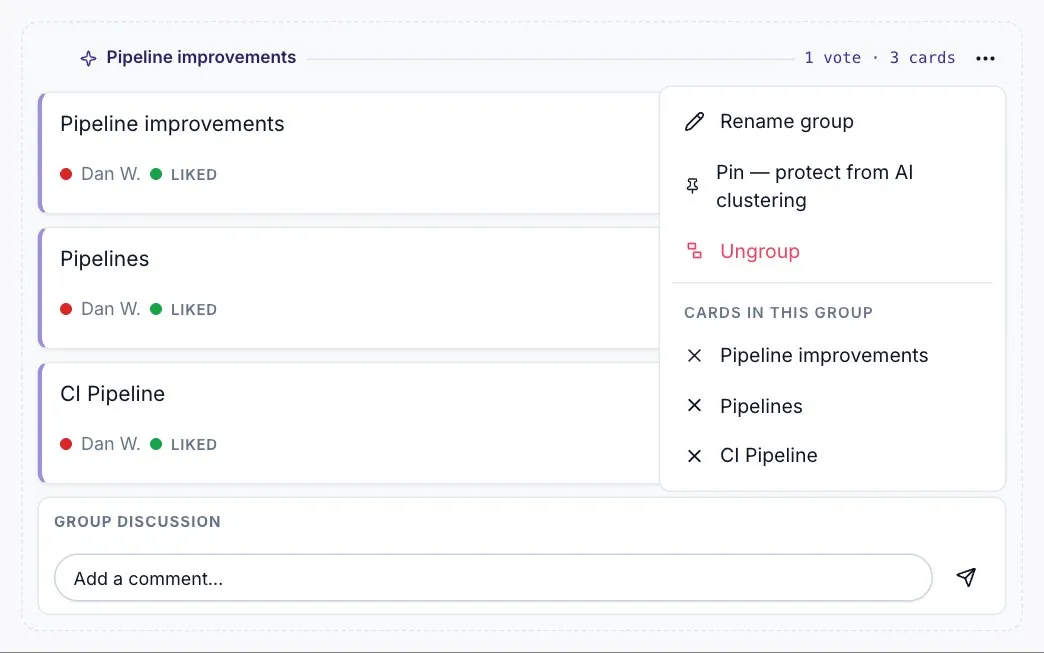
Section titled “Check the grouping”Ask the team whether each title represents its cards fairly. To pull a card out, open the group’s ⋯ menu and select the × beside it under Cards in this group — or simply drag it out. The same menu renames, pins, or ungroups the whole set.
Group with AI works on every card on the board, so you can run it before you touch anything or after grouping a few by hand. It never rewrites a card and won’t undo the groups you made yourself. Re-running it can replace the themes it generated earlier, so read the confirmation first.
Manual grouping works on every plan; Group with AI needs retro AI access on a Pro plan. See AI theme clustering.
Move to Vote
Section titled “Move to Vote”Select Next: Vote, then Move to Vote. Grouping closes and every participant receives their voting budget.
A group is a single voting target. Several versions of the same issue no longer compete with each other, so the tally reflects how much the topic matters rather than how many ways it was phrased.
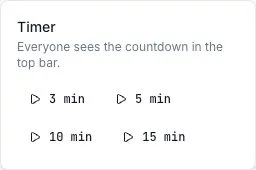
Need to time-box either phase? Timer in the dock shows the same countdown to everyone.
Casting votes
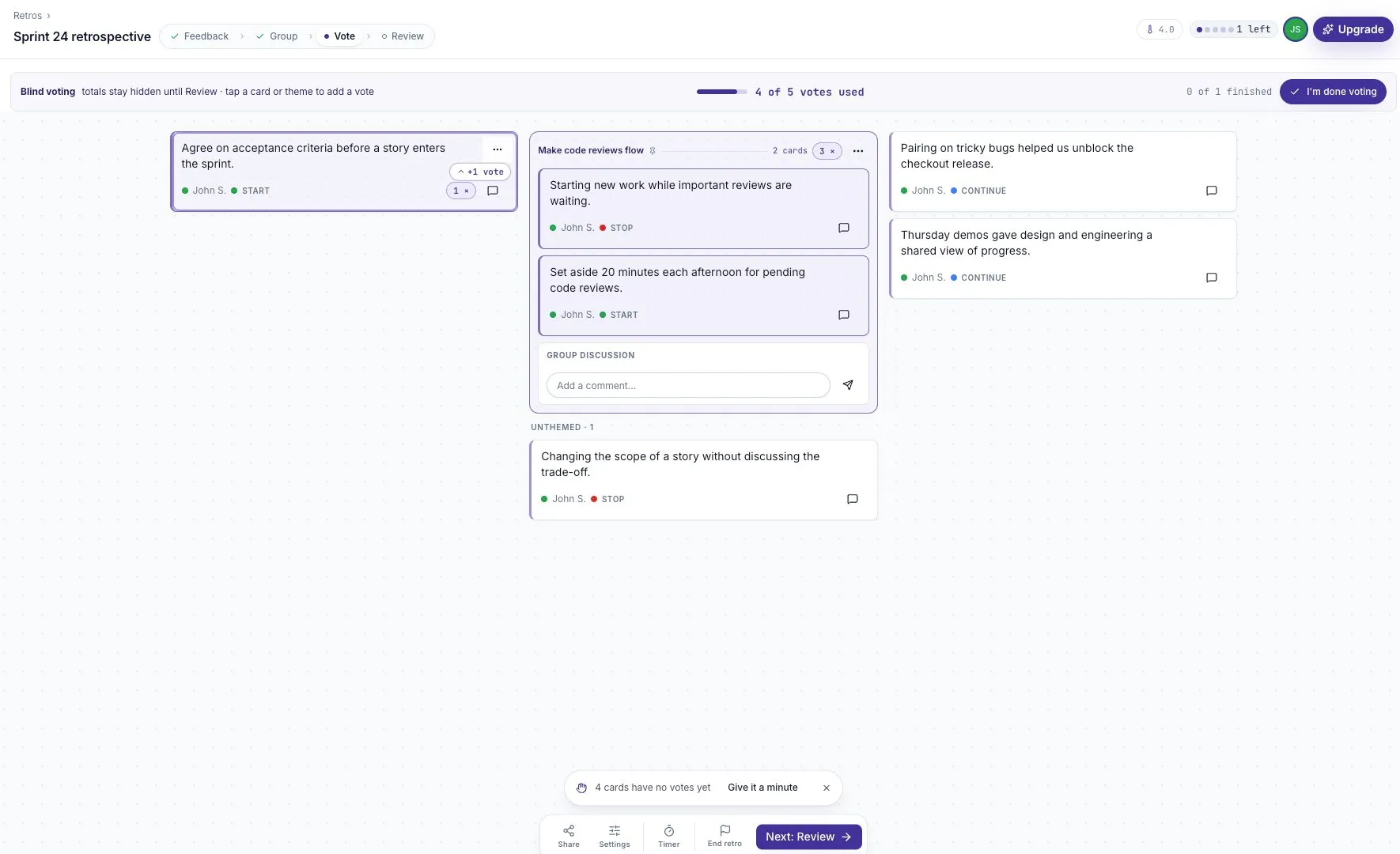
Section titled “Casting votes”The default budget is five votes per person, and a participant can put more than one vote on a topic. Remaining votes appear in the top bar; the progress strip shows how many have been used. Select I’m done voting when you’re finished — nobody has to spend every vote. Changed your mind? Hover the vote pill on the card and select the × to take back one of your own votes — you can’t remove anyone else’s.
Blind voting
Section titled “Blind voting”Blind voting is on by default for a new board. Totals stay hidden until Review so early votes don’t steer the rest of the room.
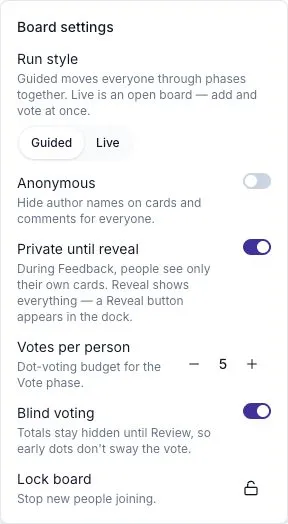
It’s separate from anonymity: blind voting controls when totals are shown; anonymity controls whether author names are shown. Review the switch in Settings before the vote, and tell participants why they can’t see running totals.
Choosing a budget
Section titled “Choosing a budget”Set Votes per person in Settings before voting starts (0–99; default 5). A good rule of thumb is about a third of the distinct issues on the board:
| Board | Budget |
|---|---|
| Under 15 cards | 3 |
| 15–25 cards | 5 |
| Over 25 cards | 7, or group first |
Group before raising the budget: a big number on a duplicate-heavy board buys ties, not clarity. Raising it mid-vote gives everyone more votes immediately; lowering it does not retract votes already cast.
Nothing zeroes a card’s votes — only each voter taking back their own. For a true do-over, ask people to un-vote or run it again on a fresh board.
Move to Review
Section titled “Move to Review”Select Next: Review and confirm Move to Review. Voting closes and the discussion view opens, ranked by votes.
The ranking is a starting point, not a verdict. A low count doesn’t prove an issue is unimportant, and the facilitator can still make space for a concern that needs attention. See The Review phase.