

Inviting participants and guest links
Share a retro board with colleagues or with people outside your workspace — three access modes, the join link, and how to rotate or lock it.
Use Share in the facilitator dock to choose who can join a retro. Set access before sending the link so participants know whether they need to sign in or verify an email.
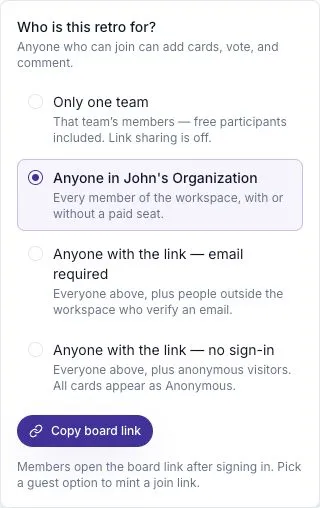
Choose who can join
Section titled “Choose who can join”| Option | Who it includes |
|---|---|
| Only one team | Members of the selected team, including free participants. Link sharing is off. |
| Anyone in your workspace | Every workspace member, with or without a paid seat. The panel uses your workspace’s name. |
| Anyone with the link — email required | Workspace members and outside guests who verify an email address. |
| Anyone with the link — no sign-in | Workspace members and anonymous visitors. Cards appear as Anonymous. |
Workspace access is the default on a new board. It is not limited to paid Seat Holders.
Share the board
Section titled “Share the board”- Select Share.
- Choose the right access option.
- Select Copy board link, or copy the guest join link offered for a guest mode.
- Give participants the link and the time you plan to start.
Workspace members open the board after signing in. Verified guests follow the email verification flow. Guests do not get access to the rest of your workspace.
Help someone who cannot join
Section titled “Help someone who cannot join”| Message or situation | What to check |
|---|---|
| Asked to sign in | The board may be limited to a team or workspace. Use the account that belongs to it. |
| Waiting for a verification email | Check the address and spam folder. Use Resend link if needed. |
| Link is not available | Ask the facilitator for the current link. It may have been rotated. |
| Retro is locked | The facilitator must unlock it before new participants can join. |
| Retro has ended | The session is closed. Ask the facilitator whether a new session is planned. |
Guest verification links expire after 15 minutes. A guest can use Use a different email to correct a mistake.
Rotate a guest link
Section titled “Rotate a guest link”Select Rotate link in Share to issue a new guest link. The old link stops accepting new joiners. People who already joined keep their session.
Replace the old link wherever your intended participants were using it.
Lock the board
Section titled “Lock the board”Open Settings → Lock board to stop new participants joining. A Locked label appears in the header. People already on the board can keep working.
Unlock it from the same control. To stop editing for the whole session, end the retro.
Changing access during a session
Section titled “Changing access during a session”Access changes take effect immediately. Restricting a guest board to workspace members can remove guests who are already present.
Explain a planned change first. For a new audience or a different privacy expectation, a separate retro is often easier for everyone to understand.