

API keys
Create, scope, and revoke workspace API keys for programmatic access to surveys, responses, themes, and signals.
An API key lets a script or integration access one workspace. Choose what the key can read or change, who owns it, and when it expires. You can revoke it when the integration no longer needs access.
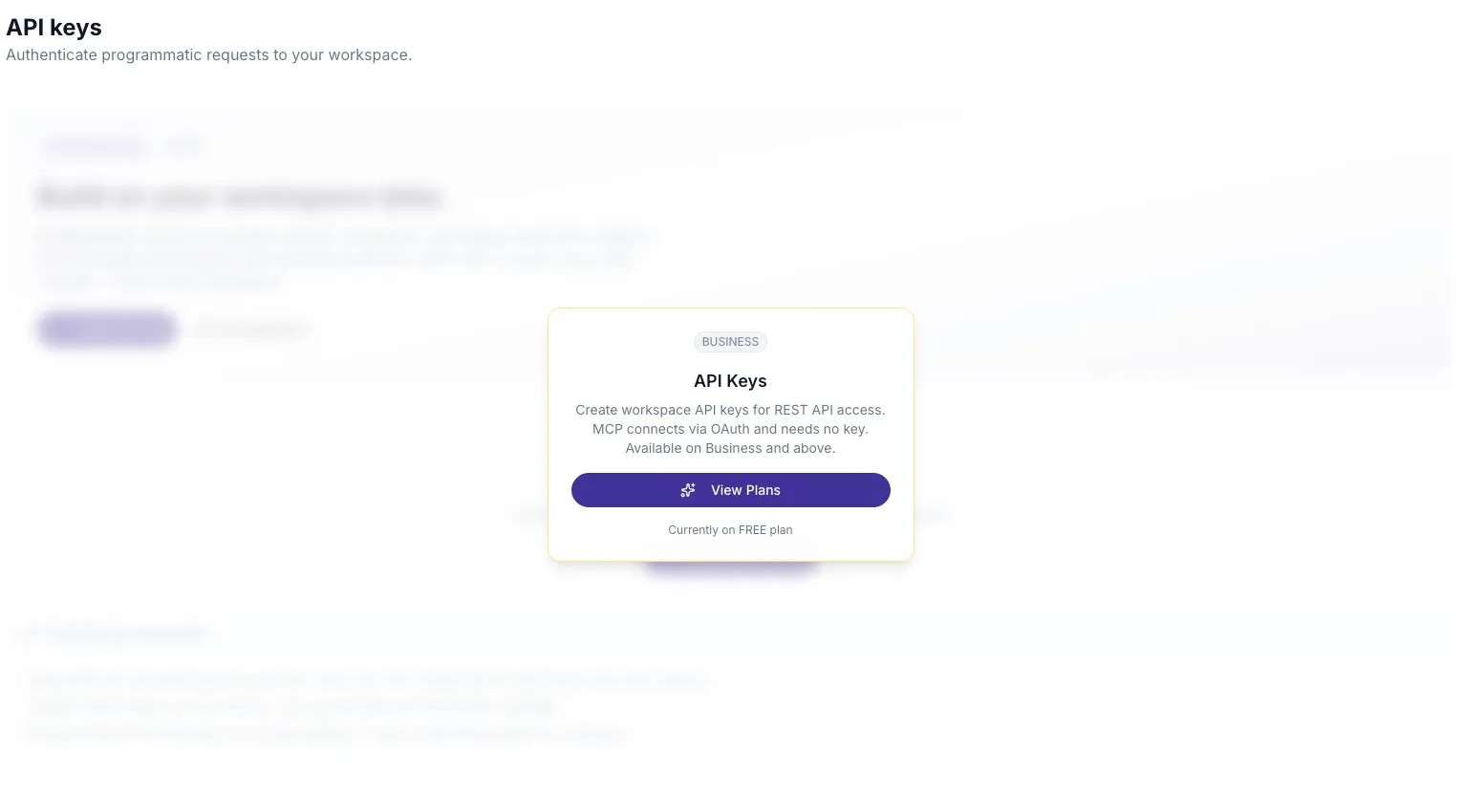
They live at API keys, which requires admin access and a Business or Enterprise plan.
Create a key
Section titled “Create a key”- Open API keys.
- Select Create API key.
- Give it a name that identifies what will use it — Slack digest bot, not key 2. Up to 100 characters.
- Choose an Owner. The default is you. Admins can create a key on behalf of another workspace user; the picker is hidden if you cannot list users.
- Choose an expiry: Never, 30 days, 90 days, or 1 year.
- Select the scopes the key needs. At least one is required.
- Select Create key.
The plaintext key is then shown once. Copy it into a password manager or secret store before closing the dialog — there is no way to see it again. If you lose it, revoke the key and create another.
After that, the list shows only the key’s prefix.
Scopes
Section titled “Scopes”Scopes follow a read:<resource> / write:<resource> form. A request using a scope the key was not granted is rejected.
| Scope | Grants |
|---|---|
read:surveys | List and read surveys, questions, sections, and templates |
write:surveys | Create, update, and close surveys — required for any write action on a survey |
read:responses | Read individual responses and their conversation threads |
read:themes | Read clustered themes, sentiment, and surfaced signals |
read:members | List workspace users, teams, and groups |
The picker groups these into Surveys, Responses, Insights, and Organization, with a select-all control per group and a running “n of 5 selected” count.
Grant the narrowest set that works. A digest script that only reads themes does not need write:surveys, and scoping it that way means a leaked key cannot close a live survey.
What a key can do
Section titled “What a key can do”A key does not expand access. It is bounded twice over:
- By its scopes, as above.
- By the permissions of the user it belongs to. A key owned by someone whose role cannot view survey results does not gain that ability by holding
read:responses. See Roles and permissions.
Key creation and revocation are both written to the audit log, recording the scopes granted, the owner, and the expiry.
Read the key list
Section titled “Read the key list”Each row shows the key name, prefix, scopes, owner, and usage dates.
| Field | Meaning |
|---|---|
| Owner | The user whose permissions the key inherits |
| Created | When it was created |
| Last used | When it last authenticated a request, or Never |
| Expires | Its expiry date, or Never |
A Revoked badge marks a key that has been revoked; an Expired badge marks one whose expiry has passed. Revoked keys stay in the list as a record.
Last used is the field to check before revoking something you’re unsure about. Check with its owner before removing an unfamiliar key; it may belong to a scheduled or newly configured integration.
Revoke a key
Section titled “Revoke a key”- Find the key and select Revoke.
- Confirm.
Revocation takes effect immediately — every subsequent request with that key is rejected — and cannot be undone. Rotating a key means creating the replacement, moving your integration over, and then revoking the old one.
Revoke a key as soon as it is no longer needed, and whenever the person who owned it leaves the workspace.