

Connect an AI agent over MCP
Connect Claude Code, Claude Desktop, or Codex to ScatterSpoke's MCP server over OAuth — available on every plan, with reading results and insights gated to paid plans.
The MCP server lets an AI coding agent work with ScatterSpoke directly: create a survey from your editor, answer one you’ve been sent, and — on a paid plan — query results and signals without opening the web app.
You connect through your account rather than a workspace API key.
There are no API keys. Authentication is OAuth. Your client opens a browser, you approve once, and the connection persists. Nothing to mint, paste, or rotate.
Connecting is available on every plan, including Free. Reading results and insights over MCP requires paid access, as explained in What your plan changes below.
Connect a client
Section titled “Connect a client”- Go to MCP in the sidebar. (Settings → MCP redirects here.)
- Select Add MCP client.
- Pick your client’s tab and copy the snippet — it carries the endpoint for your deployment.
- Follow the two steps shown for that client, below.
- Verify by asking your agent: “List my ScatterSpoke surveys.” It should return live data.
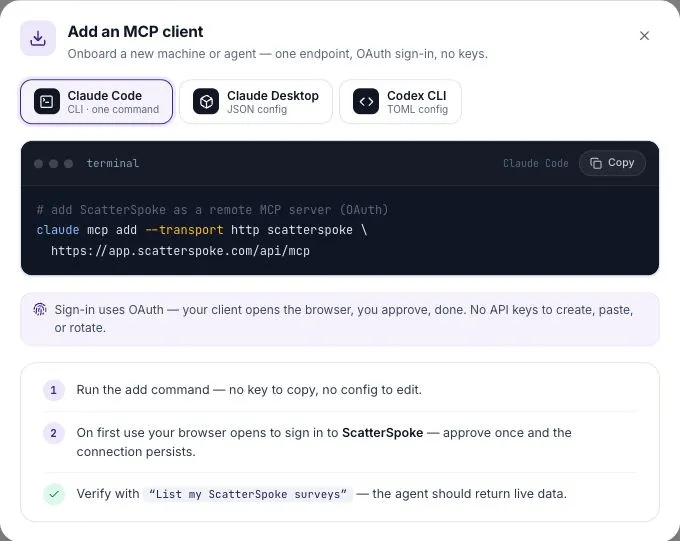
Copy the endpoint from that dialog rather than guessing it — it is resolved from the deployment you are signed in to.
Claude Code
Section titled “Claude Code”Run the add command. There is no config file to edit:
claude mcp add --transport http scatterspoke <endpoint>On first use your browser opens to sign in to ScatterSpoke. Approve once; the connection persists.
Claude Desktop
Section titled “Claude Desktop”Open Settings → Connectors and choose Add custom connector. Paste the endpoint as the URL, name it ScatterSpoke, then sign in when Claude prompts you.
Codex CLI
Section titled “Codex CLI”Append the server block to ~/.codex/config.toml:
[mcp_servers.scatterspoke]url = "<endpoint>"Then complete the browser sign-in:
codex mcp login scatterspokeConfirm it’s working
Section titled “Confirm it’s working”The MCP page shows a connection status in its header, and the page switches to a console view once a connection is live. Both are derived from real tool-call activity, not from anything you registered — because clients self-onboard over OAuth, there is no key to count. So the page reflects a connection only after your agent has actually called a tool. If it still looks unconnected, run the verification prompt above.
What your plan changes
Section titled “What your plan changes”Connecting and reading results have different plan requirements:
| Free | Pro, Business, Enterprise | |
|---|---|---|
Connect a client (MCP) | Yes | Yes |
| Answer surveys from your editor | Yes | Yes |
| Create and distribute surveys | Yes | Yes |
| List surveys and teams | Yes | Yes |
Read results, feedback, and signals (MCP_INSIGHTS) | No | Yes |
On Free, the insight tools stay visible to your agent rather than disappearing — they return a link to the results in the web portal plus an upgrade message. Your agent can still tell you exactly where to look; it just can’t read the numbers back to you.
What your agent can do
Section titled “What your agent can do”Answering surveys works for anyone signed in, whether or not they hold a seat in a Workspace. If you were invited to a survey, your agent can list it, start it, answer question by question, and submit it — static questionss and adaptive interviews alike. An invite link can be attached to your account first, so the agent can find it.
Everything else requires an active seat in a live Workspace. With one, your agent can list surveys with status and number of responsess, list teams, create a draft survey from a title and questions, and activate a draft to distribute it to its target team.
Reading results requires a paid plan. Then your agent can pull a survey’s signal summary — average sentiment, ranked themes, completion and drop-off — search feedback and open-text responses, get aggregated stats grouped by team, month, or theme, and list active signals ranked by severity and confidence.
Note what creating a survey over MCP does not do: it produces a draft. Publishing and distribution are a separate, explicit call.
Access, grounding, and safety
Section titled “Access, grounding, and safety”MCP access follows your account and workspace permissions:
- Everything is scoped to your Workspace. Searches and stats never cross into another.
- Verbatim content is withheld below the Workspace anonymity threshold, exactly as it is in Ask. See private feedback and anonymity.
- Writes are attributed. Creating or distributing a survey over MCP writes an audit log entry naming you as the actor, tagged as coming from MCP.
- Access is re-checked on every call — token expiry, your account state, your seat, and the workspace’s plan access. Losing a seat ends MCP access immediately rather than at the next sign-in.
Disconnect
Section titled “Disconnect”Remove the server from your client’s configuration. Because access is per person and re-evaluated on every call, removing someone from the Workspace ends their MCP access to it without anyone touching their local setup.