

Group related feedback
Combine related cards into named groups before voting so your team can discuss a topic together.
The Group phase sits between Feedback and Vote on a guided board. Use it to bring related cards together before people choose what to discuss.
For example, “Reviews take too long” and “Set aside time for reviews” describe a problem and a possible response. A group called Make code reviews flow keeps both parts of that conversation together.
1. Move to Group
Section titled “1. Move to Group”- Finish the writing time in Feedback.
- Select Next: Group in the facilitator dock.
- Read the confirmation and select Move to Group.
Moving to Group closes the writing phase, reveals the cards, and opens grouping. Give everyone a moment to read before rearranging the feedback.
2. Make a group
Section titled “2. Make a group”- Find two cards about the same topic.
- Drag one card onto the other using its drag handle.
- Select the new group’s name and give it a short, specific title.
- Press Enter to save the name.
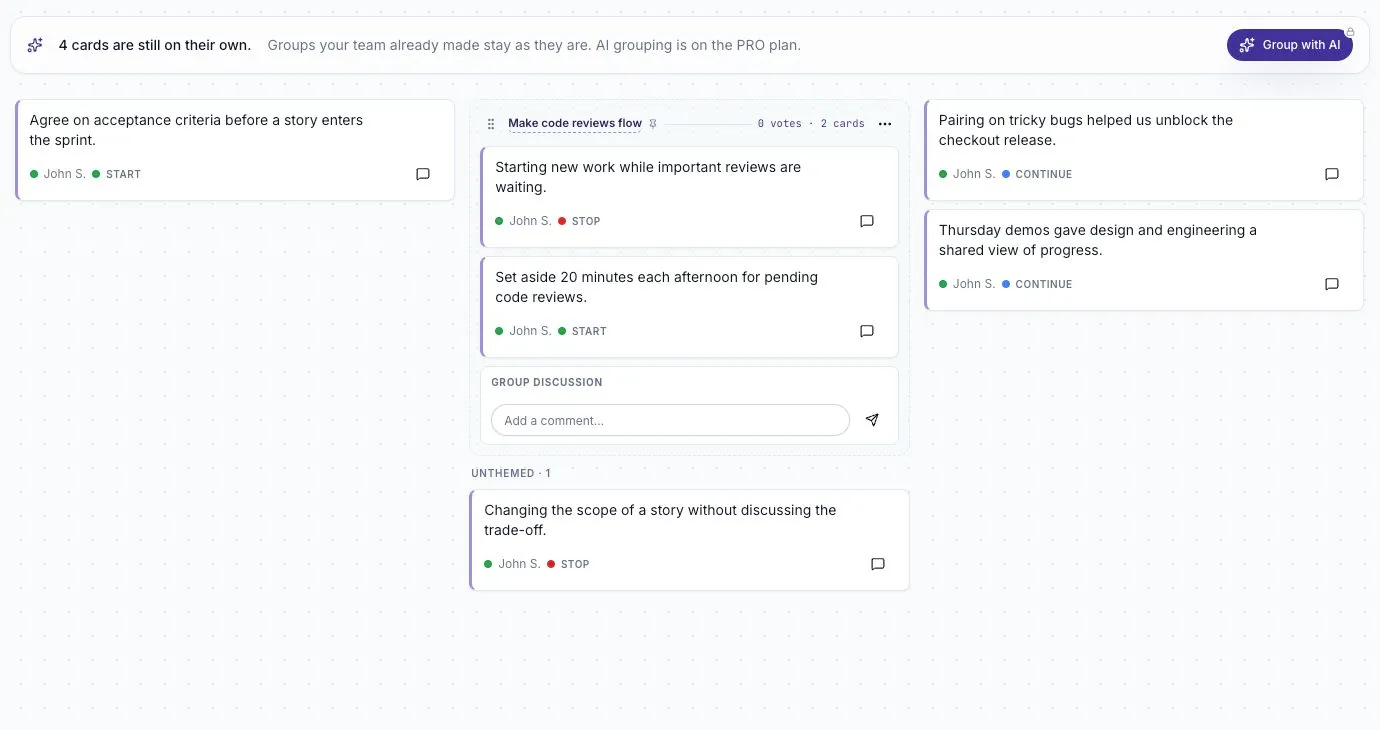
The original cards stay readable inside the group, including their original column labels.
A group can connect a problem with a suggested improvement. Avoid grouping cards just because they use the same word; read their meaning first.
3. Check the grouping
Section titled “3. Check the grouping”Ask the team whether the title represents the cards fairly. Leave unrelated feedback on its own. Use Remove from theme beside a card if it belongs outside the group.
Groups made manually are shown as pinned and protected from AI clustering. The Group with AI option requires Pro. Its description explains that existing manual groups stay as they are while AI groups the remaining cards.
4. Move to Vote
Section titled “4. Move to Vote”Select Next: Vote, then Move to Vote. Grouping closes and participants receive their voting budget.
Participants can vote on a group as one topic. This avoids splitting attention across several cards about the same issue. See The Vote phase for voting and The Review phase for discussion.
If you cannot group cards
Section titled “If you cannot group cards”Check that the board is in Group and is still open. A closed board is read-only. If Group with AI opens an upgrade option, you can still organize the feedback manually using the workflow above.