

Turn on two-factor authentication
Set up an authenticator app for your ScatterSpoke account, save your recovery codes, and know what sign-in looks like afterwards.
Two-factor authentication (2FA) adds a second step at sign-in so a leaked password is not enough on its own. ScatterSpoke uses TOTP — six-digit codes from an authenticator app — with one-time recovery codes if you lose access to the app.
It is per-account, not per-workspace: you turn it on for yourself, on Settings → Profile, on every plan.
1. Start setup
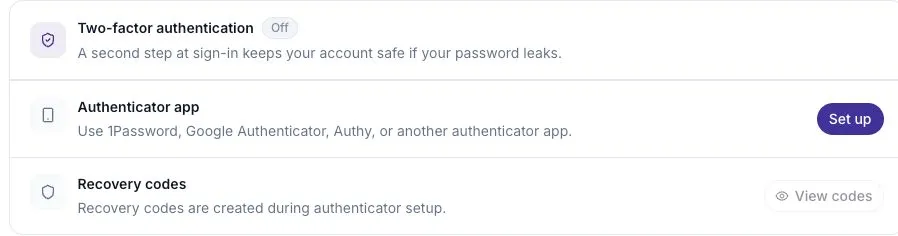
Section titled “1. Start setup”Open Settings → Profile. Under Sign-in & security, find Two-factor authentication and select Set up beside Authenticator app.
Confirm your password. This is required before ScatterSpoke will generate a new setup code, and it is asked again if you later disable 2FA.
2. Scan the QR code
Section titled “2. Scan the QR code”Scan the QR code with 1Password, Google Authenticator, Authy, or any other TOTP app. The entry will appear under the issuer ScatterSpoke.
If you cannot scan, the Manual setup key below the code is the same secret in text form — paste it into your app instead.
3. Save your recovery codes
Section titled “3. Save your recovery codes”The same dialog shows a block of recovery codes, with a Copy button. Each one works once, and they are what gets you back in if you lose your phone.
Put them in a password manager, not in the same app that generates your codes.
4. Verify and enable
Section titled “4. Verify and enable”Enter the current six-digit code from your app and select Verify and enable.
2FA is not active until this step succeeds — generating a QR code alone does nothing. When it does succeed, the card flips to On and the Authenticator app row is badged Primary.
What sign-in looks like now
Section titled “What sign-in looks like now”After entering your email and password you land on a Two-factor authentication screen.
- Enter the six-digit code from your app and select Verify code. This path trusts the device, so you are not challenged on every sign-in from it.
- Or select Use a recovery code, enter one of your saved codes, and select Verify recovery code. This path does not trust the device — it is a way in, not a way to stop being asked.
Turning it off
Section titled “Turning it off”Select Manage on the Authenticator app row, confirm your password, and select Disable authenticator app. Your existing recovery codes stop working; enrolling again issues a fresh set.
The security reminder
Section titled “The security reminder”Until 2FA is on, a banner across the top of the app suggests securing your account. Dismiss hides it, remembered per browser and per user — so dismissing it on a shared machine does not hide it from the next person who signs in. The reminder is not shown while 2FA is enabled.
The same prompt appears during onboarding, where you can set 2FA up before inviting anyone else.
If a code is rejected
Section titled “If a code is rejected”Use the newest code for your ScatterSpoke account and check that your phone’s time is set automatically. If you cannot access the authenticator app, use a saved recovery code. Each recovery code works only once.
If you have neither, contact your workspace administrator or ScatterSpoke support for help with account recovery. Do not send anyone your password, QR code, manual setup key, or recovery codes.
Protect other sign-in methods
Section titled “Protect other sign-in methods”You can also add a passkey to sign in without typing a password. If your workspace uses SSO, follow its identity provider’s MFA policy too. ScatterSpoke administrators retain a password recovery path, so their account-level 2FA still matters.