

Teams and groups
Create teams, add people, and organize teams into groups to review feedback together.
A team brings people together around their work. A group brings teams together for a broader view. For example, Checkout and Platform can be teams within an Engineering group.
Check your team capacity
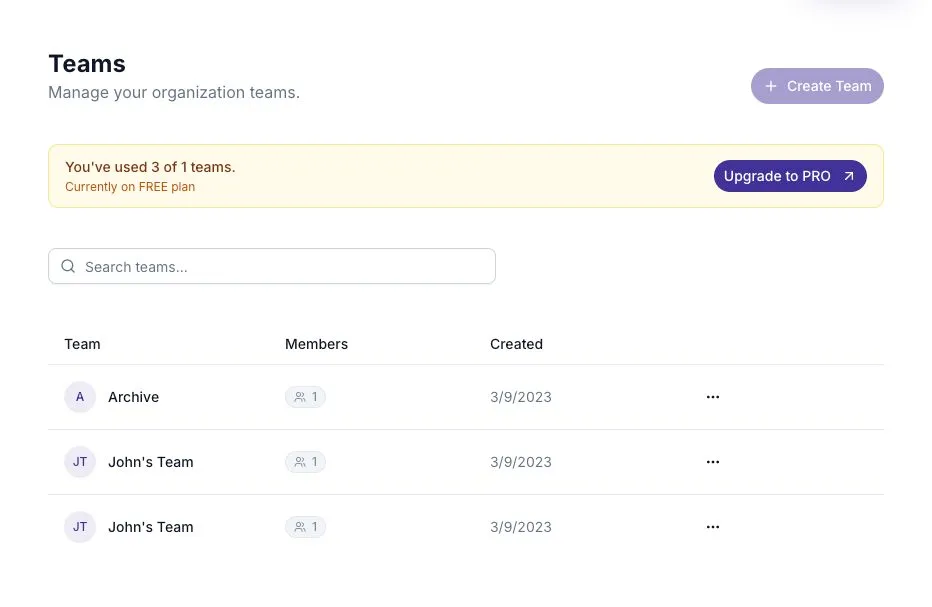
Section titled “Check your team capacity”Open Settings → Teams. The page shows how many teams you have and whether you can create another.
| Plan | Teams |
|---|---|
| Free | 1 |
| Pro | 2 |
| Business and Enterprise | Unlimited |
Existing teams can remain after a downgrade, even if they put you above the new limit. You must get below the limit or change plans before creating another. Groups require Business or Enterprise.
Create a team
Section titled “Create a team”- Open Settings → Teams.
- Select Create Team.
- Enter a clear name, such as Product engineering.
- Select Create Team, then open the team to add people.
The list shows member counts and creation dates. Use the search box to find an existing team before creating a duplicate.
Add people
Section titled “Add people”Open a team and select Add People. The dialog offers three paths:
| Tab | Use it when |
|---|---|
| Add Members | The person already belongs to your workspace. Find them and select Add. |
| Invite by Email | You need to invite a specific person. Review the addresses and available seats before sending. |
| Invite Link | You want a reusable link that joins people to the workspace and this team. |
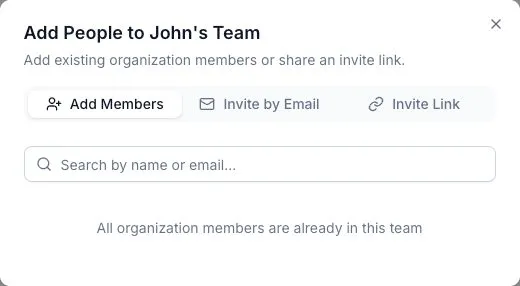
Adding an existing Seat Holder to a team does not require another seat. Inviting someone new to the workspace does. See Invite users and seats.
Regenerate on an invite link invalidates its previous version. Share the new link wherever people were using the old one.
Rename or remove a team
Section titled “Rename or remove a team”Open the team, edit Team Name, and select Save. To remove a person from this team, use their row menu and choose Remove from Team. They keep their workspace membership.
Delete Team archives the team and asks for confirmation. Check that you are removing the correct team; the confirmation says this cannot be undone.
Organize teams into groups
Section titled “Organize teams into groups”Open Groups. This page is not currently linked in the settings sidebar.
- Select Create Group and give it a name.
- Open the group.
- In Members, search for teams or other groups.
- Select the members and save.
Groups can contain other groups, but they cannot contain themselves, directly or through a chain of groups. If you see a circular-reference error, remove the relationship that loops back to the original group.
The group page includes a Signals Overview (Last 30 Days) for teams beneath it. Use this broader view to spot a recurring issue, then return to the original feedback before deciding what it means.
Deleting a group removes that grouping. It does not delete the teams or nested groups that belonged to it.